Monitor Scheduled Tasks in Windows with ArcGIS Monitor
ArcGIS Monitor is a very versatile tool that helps administrators monitor the health of their GIS. It can easily be configured to monitor servers, databases, web apps, and many other ArcGIS implementations.
Quick Summary
- ArcGIS Monitor can be configured to monitor Windows scheduled tasks using Esri's Python Extension sample code, modified to query the Windows Task Scheduler via the
win32comlibrary. - The Monitor extension is set up as a Task, allowing it to run on a schedule and alert the team each morning if any overnight data replication jobs failed.
- Dymaptic developer Kevin shares the complete source code for this extension in the public GitHub repository for GIS teams to adapt and reuse.
How Can ArcGIS Monitor Track Windows Scheduled Tasks?
In previous posts on the dymaptic blog, we explored how to configure ArcGIS Monitor to send notifications to Microsoft Teams both out of the box and through the use of webhooks. Today, we'll show you how we're using ArcGIS Monitor to monitor scheduled tasks in Windows.
We have several scheduled tasks that replicate data from multiple databases. The tasks reside on the same machine and run at different times during the day. We wanted to make sure that the tasks complete successfully and we wanted to be alerted if there are any errors. There are several other options when it comes to monitoring scheduled tasks in Windows but we wanted to use ArcGIS Monitor to have all our GIS related alerts in one spot, and to take advantage of Monitor's reporting and charting features to study patterns in our data.
How Do You Set Up the ArcGIS Monitor Python Extension for Scheduled Tasks?
The first step in the process was to download the Python Extension sample code from Esri. Inside the folder there are multiple files, including a file called examplePython.py. This is the main logic file so we have renamed it to monitorScheduledTasks.py as it seemed more appropriate. In this file we made the following changes:
- Add
import win32com.clientafter the first import statement - Remove all code between the comments
"'Reading config is optional. The below is a sample code logic"'and"'A sample method to produce a valid output"' - Add the following code to replace the code just removed:
scheduler = win32com.client.Dispatch('Schedule.Service')
scheduler.Connect()

# this can be the folder or folders you wish to check tasks for
# scheduler.GetFolder('') will get everything from the top down
# we want to get everything in the Replication folder
folders = [scheduler.GetFolder('\\Replication')]

# the displayType is what Monitor will show
output={
  "displayType" : "DatabaseScheduledTasks",
  "groupByCounterInstance" : True,
  "counters" : [],
  "details" : {}
}

while folders:
  folder = folders.pop(0)
  folders += list(folder.GetFolders(0))
  for task in folder.GetTasks(0):
    item={
      "counterName" : task.Name,
      "counterCategory" : "results",
      "counterInstance" : "TaskResult",
      "value" : task.LastTaskResult
    }
    output["counters"].append(item)

out=json.dumps(output)- Remove the whole
Outputmethod.
The next file we needed to modify is testCmd.js. On line 13, we replaced the name of the default folder with our own:
var t = require('../PythonScheduledTasks');To use this newly created extension, we imported the .zip file into Monitor as with any other Extension. Once imported, the extension is located at \Administrator\resources\app\bin\PythonScheduledTasks.
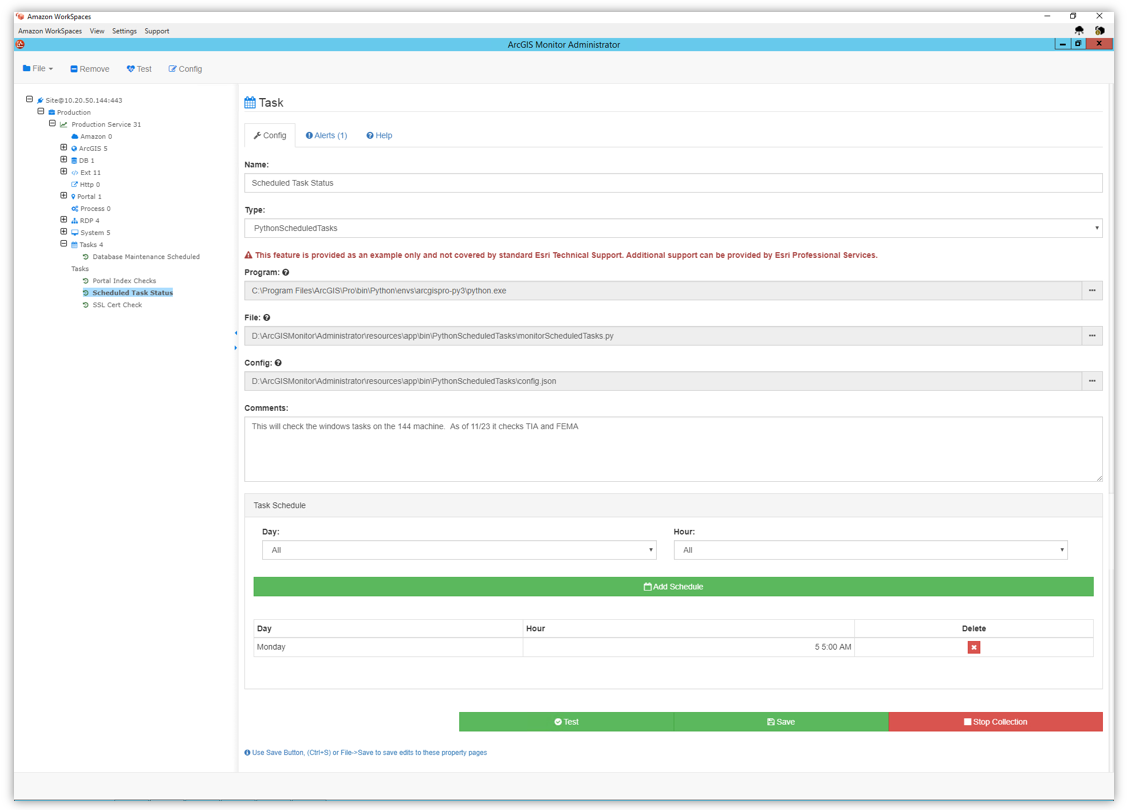
When configuring the extension, we made sure to set it up as a Task which will allow us to schedule it to run on specific days and at specific times. For example, as our Windows scheduled tasks run nightly, we have set the Monitor task to run first thing in the morning. This way we get prompt notifications if any of the replications failed.
You can find all the code for this extension in dymaptic's GitHub repository. You're also welcome to if you would like help setting up ArcGIS Monitor.
If you need expert support with ArcGIS Enterprise administration, monitoring, or automation, dymaptic's team is here to help.
Photos by bruce mars and Lukas Blazek on Unsplash.
Have a Project in Mind?
The dymaptic team loves hearing about the different projects you are working on, brainstorming solutions with you, and sharing our technical expertise in the process.