ArcGIS Monitor Notifications in Microsoft Teams
At dymaptic, we monitor many servers and services for our customers. We do this with ArcGIS Monitor, and one of the things ArcGIS Monitor does well is get email notifications to the people that need them. But as we rely on email less and less, we thought it would be helpful to receive the notifications in our Microsoft Teams chats.
Quick Summary
- Every Microsoft Teams channel has a built-in email address that can be retrieved by right-clicking the channel name and selecting "Get email address."
- Pasting the Teams channel email into ArcGIS Monitor's notification settings routes all Monitor alerts directly into the Teams channel, with no additional tools required.
How Can ArcGIS Monitor Send Notifications to Microsoft Teams?
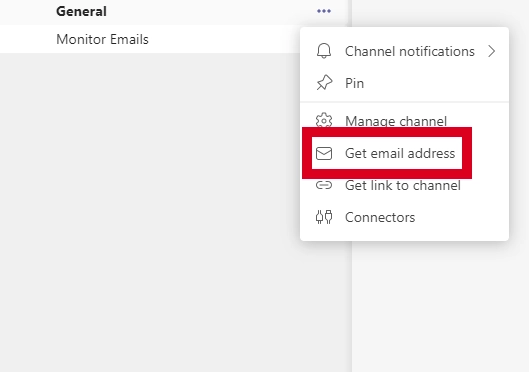
Every Microsoft Teams channel has an email address associated with it. To retrieve it, right click on the channel name and click Get email address.
How Do You Configure ArcGIS Monitor to Use a Teams Channel Email?
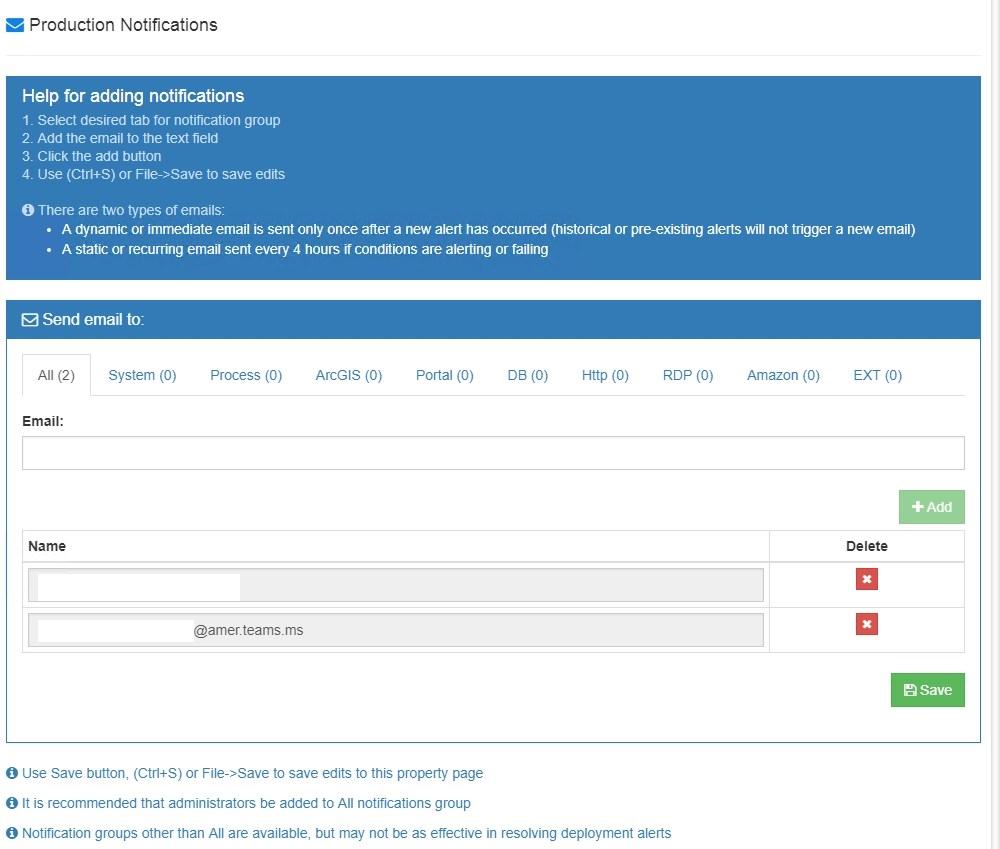
You can copy that email address and paste it into your notification area of ArcGIS Monitor. After that, you and your team will receive your notifications right in your Microsoft Teams chat box. To set this up for you and your team, you will need to be an Administrator for ArcGIS Monitor. On your server, open the Administration application, go to notifications, and paste in the Teams Channel email.
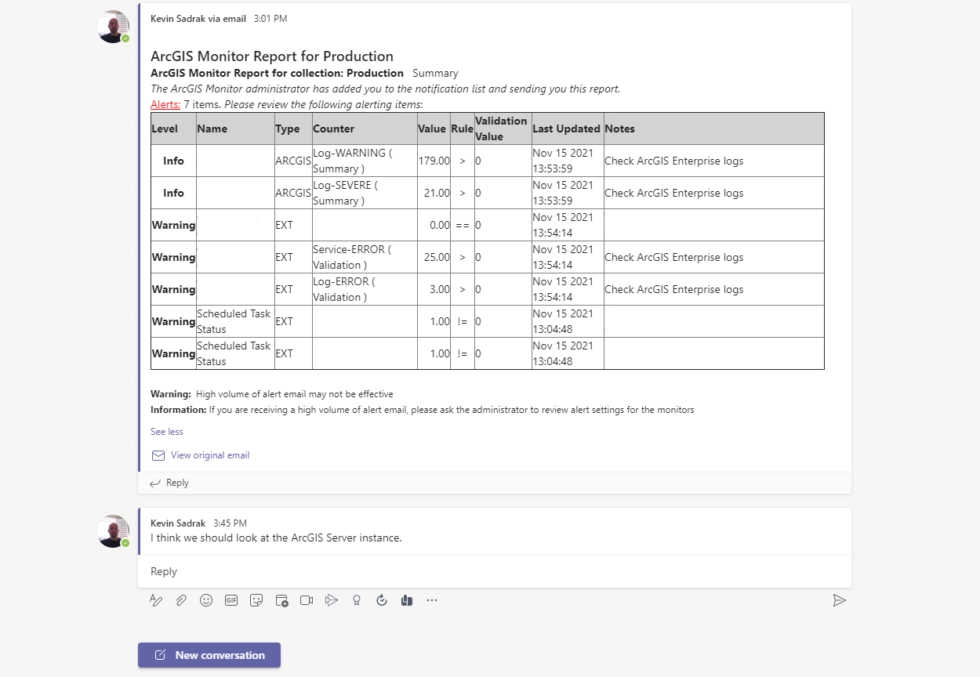
Now the (hopefully few) notifications you receive from Monitor will be in your Microsoft Teams chat.
Featured photo by Dimitri Karastelev on Unsplash.
Have a Project in Mind?
The dymaptic team loves hearing about the different projects you are working on, brainstorming solutions with you, and sharing our technical expertise in the process.