Webhook Powered ArcGIS Monitor Notifications in MS Teams
In our last blog post, the dymaptic team shared how to send simple ArcGIS Monitor notifications to Microsoft Teams. Since then, we have been tinkering more with ArcGIS Monitor in an attempt to get more detailed information from our clients' servers. In the process, we have found the need to set up additional notifications using Teams webhooks.
Quick Summary
- This post builds on dymaptic's earlier ArcGIS Monitor-to-Teams notifications tutorial, adding custom content support via Microsoft Teams incoming webhooks.
- The setup uses the pymsteams Python module to format and send JSON alert data from ArcGIS Monitor directly to a Teams channel via a webhook URL.
- Windows Task Scheduler automates the Python script to run at a configurable interval without manual execution.
- Notification content is fully customizable: colors, labels, images, links, and per-counter or per-collection alert details can all be included in the Teams message.
- The full Python script is available in the dymaptic GitHub repository as an open-source starting point.
Editor's note: This post was originally published in 2022, and ArcGIS Monitor has had version updates in the meantime. Please research these for any relevant changes.
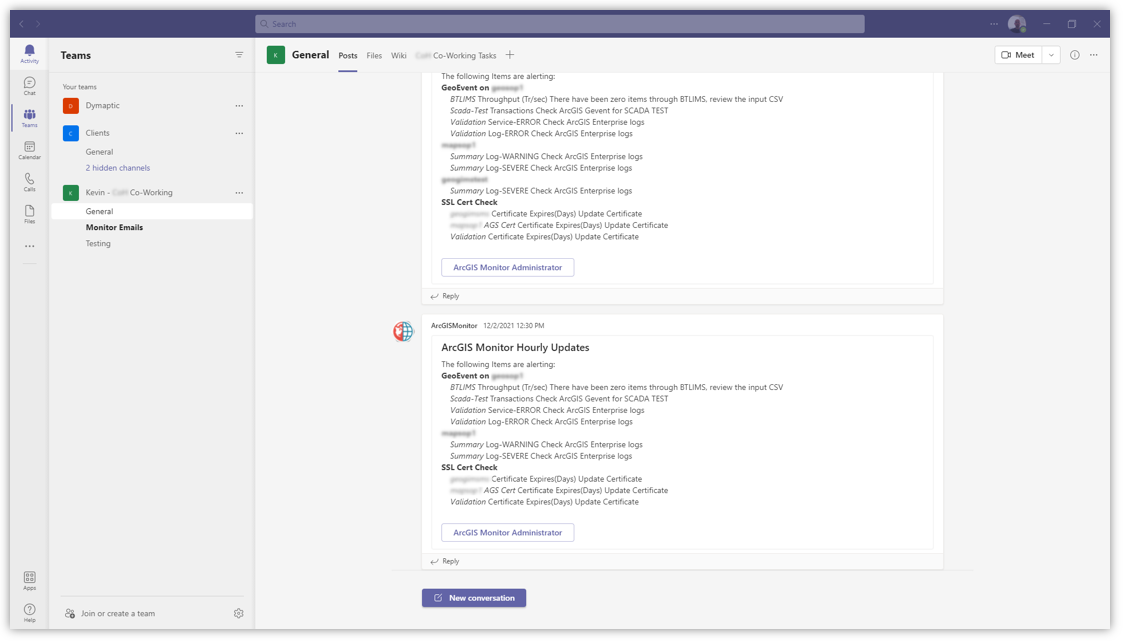
Why Use Webhooks for ArcGIS Monitor Notifications?
There are several reasons you might want to set up something similar: proof-of-concept starting blocks, or maybe, like us, you want custom notification content. Let's examine each of those reasons.
As a proof of concept and starting point, this hits all the marks. We can show successful integration between two powerful tools. Once all these tools are connected together, ideas will start. We have already started down the path of Teams interaction, working with Power Automate in our previous blog post. The next step is integration with automation workflows such as Power Automate, Automate.io, and pushing into systems like ServiceNow or Microsoft Teams Tasks, or even GitHub. We can create support tickets and automatically assign them to the right people to review and resolve Enterprise GIS issues.
The notifications from ArcGIS Monitor 10.8 allow us to configure alerts from a collection. Direct emails can be sent from individual counters such as System, ArcGIS, Portal, and DB. We can fine-tune the notifications to better fit the team dynamic. We can combine counters or collections and we can add extra links, information, or images to help the users understand the issue and help them resolve it faster.
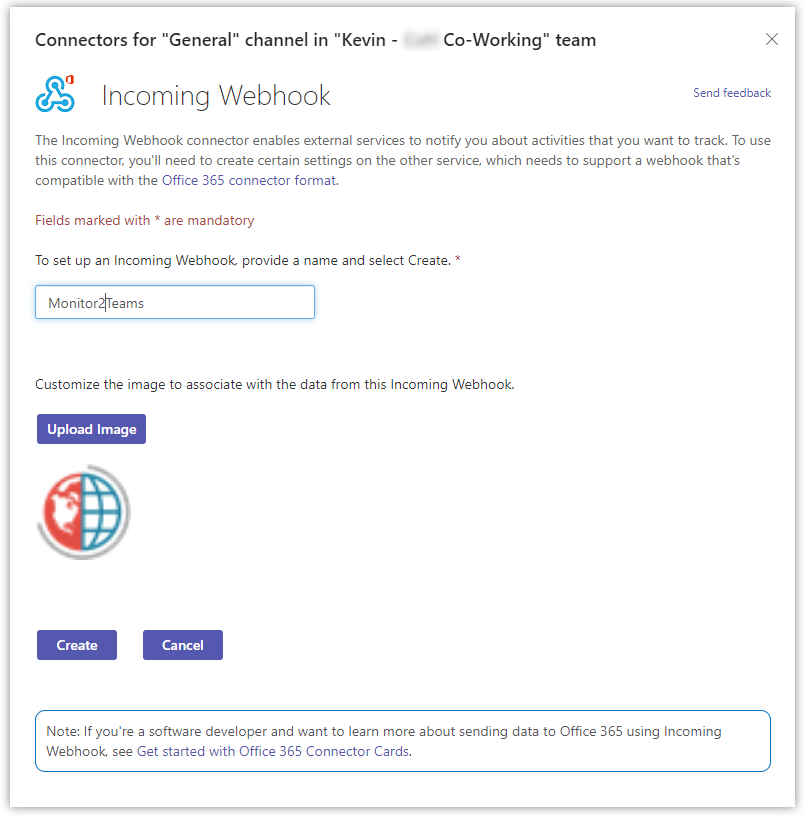
How Do You Add the Webhook Connector to Microsoft Teams?
The first step of this process is to add the Webhook Connector to your Teams channel. Microsoft has a great help document on the webhook connector and how to add it to your Teams channel.
How Do You Configure Python to Send ArcGIS Monitor Alerts?
Once you have the webhook configured, you will need to send JSON with your ArcGIS Monitor notifications. We chose to use Python to send the JSON to Teams. To make the process easier we used the pymsteams Python module. If you don't have this module, install it by running pip install pymsteams in Command Prompt or Windows PowerShell.
The next step is to configure your Python script to write to the webhook. A variable that contains the webhook URL from the previous step will need to be put into the code. In our code example you can see where to include this. The business logic will depend on what you would like to show in your team's chat. For us, we just wanted to show the overall categories and the descriptions associated with them. You could parse the values to change colors or labels depending on the alerting status. You could also include images and even links. All of this will depend on what you and your team decide is important.
How Do You Automate Alert Delivery with Windows Task Scheduler?
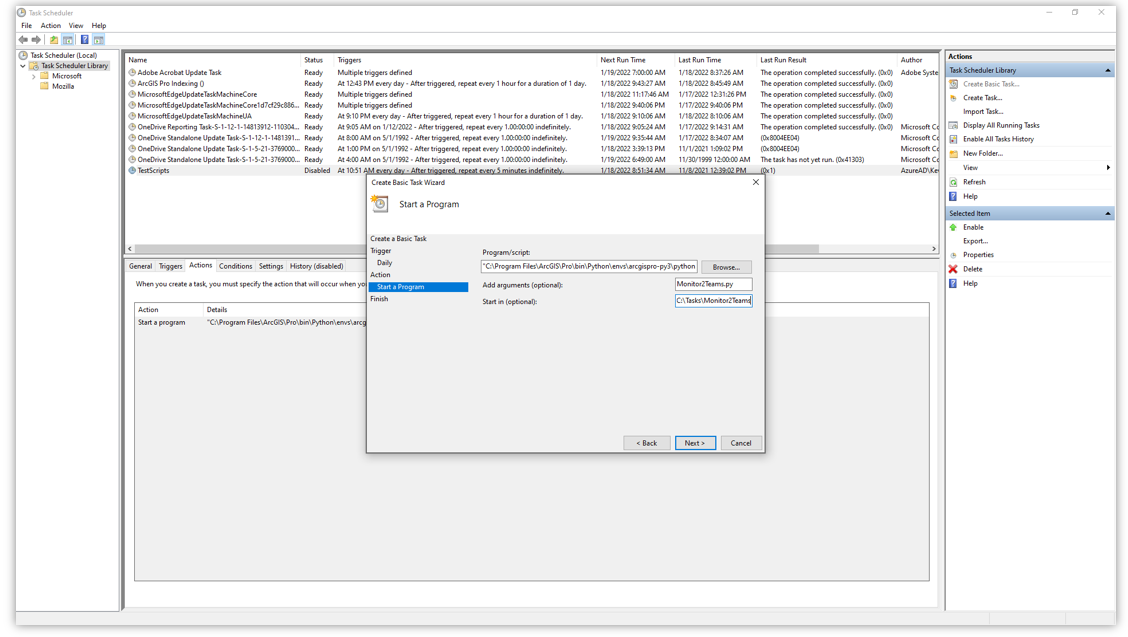
This script will need to be run so that it can check into ArcGIS Monitor and post into Teams. We chose Windows Task Scheduler for this. We set it up to run once an hour, but you might want to adjust it to the start of the day, midday, or any time interval that works for you.
Open Windows Task Scheduler and create a new Task. Name the task and give it a description. You will need to define the Trigger and timing. We chose daily, once an hour, indefinitely. Once you have created the task, you can fine-tune the trigger times from inside the task.
Where Can You Find the Sample Code?
We have placed the Python script into dymaptic's GitHub repository so you can have a good starting place.
Have a Project in Mind?
The dymaptic team loves hearing about the different projects you are working on, brainstorming solutions with you, and sharing our technical expertise in the process.