A Beginner's Guide to Developing ArcGIS Pro Add-Ins
Quick Summary
- ArcGIS Pro Add-Ins are one of four extensibility points in the ArcGIS Pro SDK for .NET, allowing developers to add custom UI components to the ArcGIS Pro ribbon.
- Config.daml defines where Add-In UI components appear in the ribbon; Module.cs defines the entry point and is the parent container for all those components.
- Task Asynchronous Programming (TAP) keeps the ArcGIS Pro UI responsive; fine-grained methods that modify application state must run on the Main CIM Thread (MCT) via
QueuedTask.Run(), while coarse-grained async methods are safe to call from the GUI thread. - WPF Binding and MVVM decouple the Add-In UI (View) from business logic (ViewModel); the Pro SDK provides
SetProperty()andRelayCommandto simplify this pattern in place of standard .NET alternatives.
Esri provides multiple options for extending the functionality of ArcGIS Pro. Add-Ins are one of four extensibility points using the ArcGIS Pro SDK for .NET, allowing developers to create custom functionality that appears in Pro's ribbon and can be packaged as a Pro Window, Dockpane, Button Palette, Button, and more.
This post is a beginner's guide to creating a simple map exploration Add-In. The dymaptic team developed a free-and-open-source Zoom To Coordinates Add-In, which expands upon default Esri functionality by letting users create and customize graphics for their points of interest. The Add-In is available on the Esri Marketplace and the full source code can be inspected in the dymaptic GitHub repository.
Rather than a step-by-step walkthrough, this post highlights three key development concepts from the Zoom To Coordinates Add-In: project structure, async threading, and the MVVM pattern, with notes on common SDK pitfalls along the way.
Note from the editor: this guide was originally created in 2023 and covers ArcGIS Pro v3.x and .NET 6. However, the SDK has released versions since publication. Please check for relevant changes where necessary.
What Is Config.daml and How Does It Structure an ArcGIS Pro Add-In?
Create a new Add-In project using the Add-In project template in Visual Studio and study the relationship between Config.daml and Module.cs. Config.daml is Esri's XML standard, providing markup for defining where your various UI components will appear in the ArcGIS Pro ribbon, while Module.cs defines the entry point for your Add-In and is the subsystem where all your UI components reside. This is better appreciated once you create a UI element, such as a button, and can see how the button is declared within the module parent.
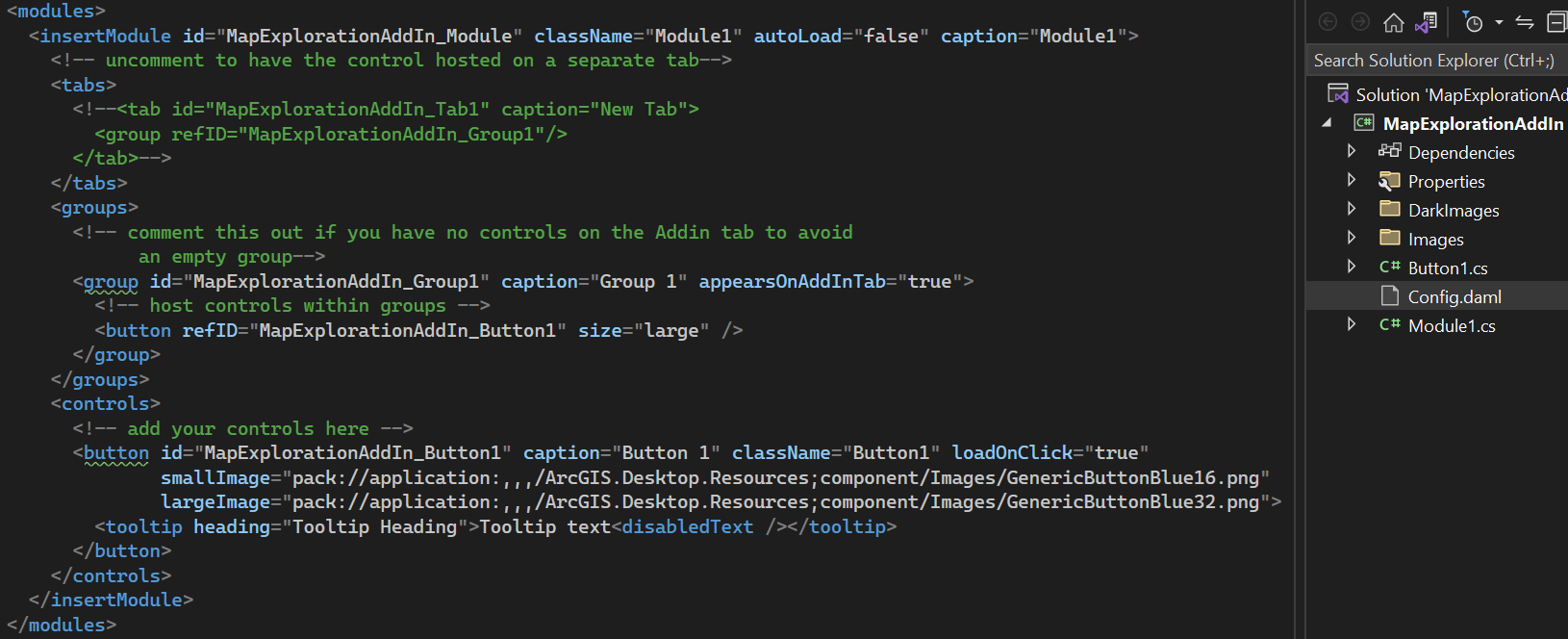
A simple example of Config.daml using default filenames. Note the className attribute for the module and button, which must match the respective filenames exactly, whereas the id attribute follows an Esri naming convention, which doesn't allow periods (periods are replaced with underscores). The MapExplorationAddIn_Module id is of special note since this string gets referenced in Module.cs shown next.
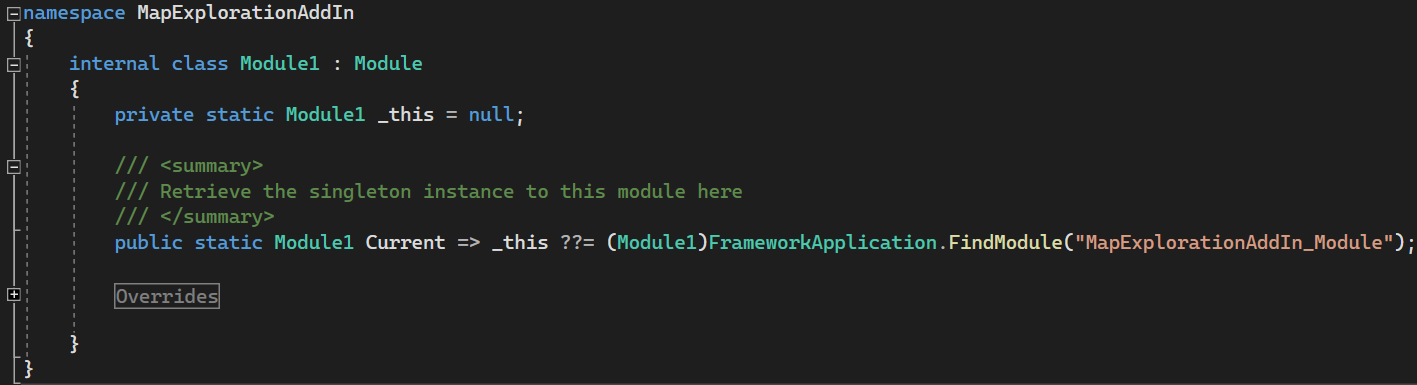
Module.cs and Config.daml must have matching id values. Refactoring and renaming files can cause a subtle id mismatch, preventing your Module singleton from being instantiated, resulting in a NullReferenceException, which will be thrown if you override any static methods defined in Module.cs.
Now we'll look at the actual Add-In created for dymaptic with renamed filenames to underscore the subtleties of XAML naming conventions, which can be a common source of bugs.
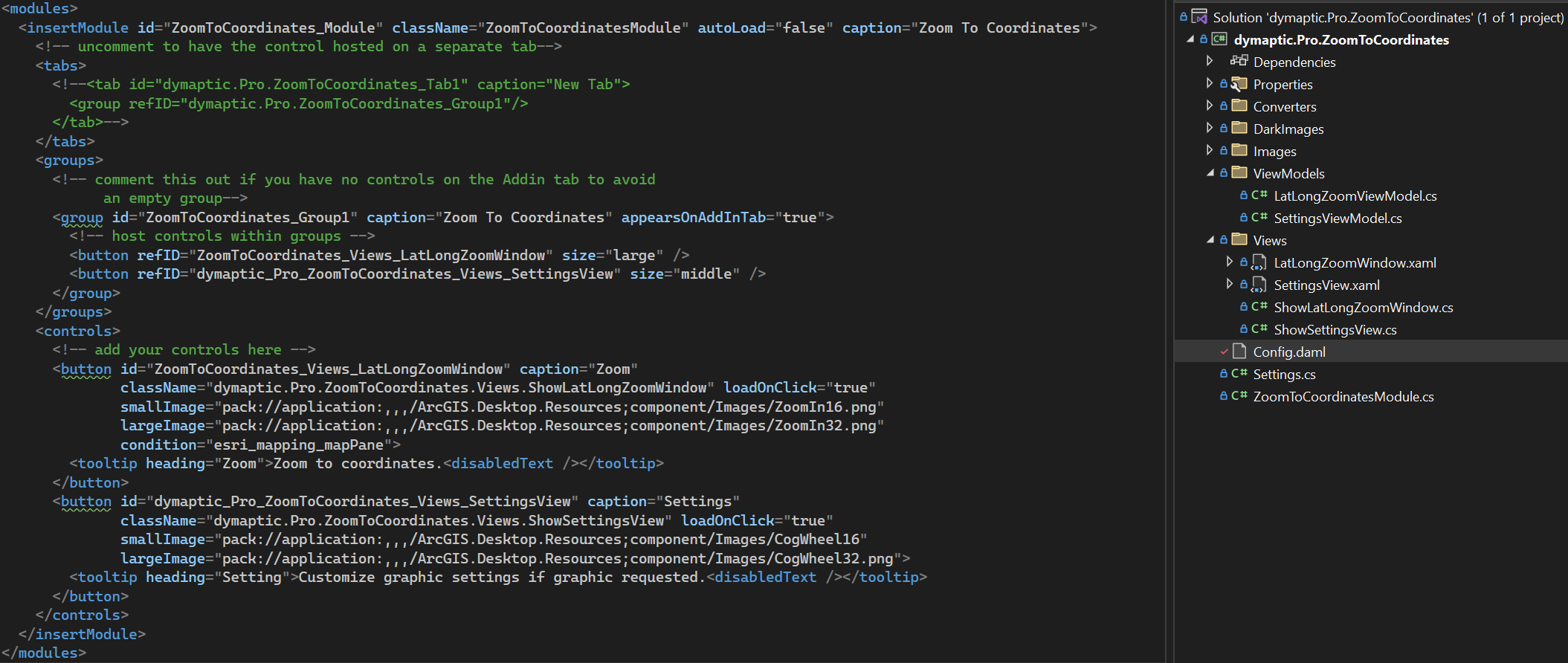
Renaming of Module.cs to ZoomToCoordinatesModule.cs requires a manual change to the className attribute in Config.daml. Furthermore, if you rename the project and want the ids to reflect that, you'll need to do this manually, taking special care not to use periods and ensuring that the module id defined in Config.daml matches the FindModule method called in ZoomToCoordinateModule.cs.
How Does Task Asynchronous Programming (TAP) Work in the ArcGIS Pro SDK?
The Pro SDK leverages asynchronous programming to keep the Pro UI responsive and prevent it from freezing up when you have a long-running process. As an Add-In developer, you are mainly concerned with just two threads: the Graphical User Interface (GUI) thread and the Main CIM Thread (i.e., MCT). The Pro application state is maintained by the Cartographic Information Model (CIM) and uses the special worker thread called the MCT. Any methods referred to as "fine-grained" by the SDK team that impact the application state must be called on the MCT using the QueuedTask class or else a CalledOnWrongThreadException is thrown. Fortunately, the Pro SDK team makes this relatively simple to carry out since it leverages TAP whereby you use the async modifier to denote an asynchronous method and use await to denote the suspension point prior to calling QueuedTask.Run().
Methods that don't require the MCT, yet still are asynchronous, and referred to as "coarse-grain" methods by the SDK team, have Async in their signature, and are safe to be called from the GUI thread (e.g., await MapView.Active.ZoomToSelectedAsync(new Timespan(0,0,3))). Lastly, the SDK also provides developers with a third background thread that can be accessed using the BackgroundTask class and its Run() method (BackgroundTask.Run()); however, it's less commonly used and is beyond the scope of this article.
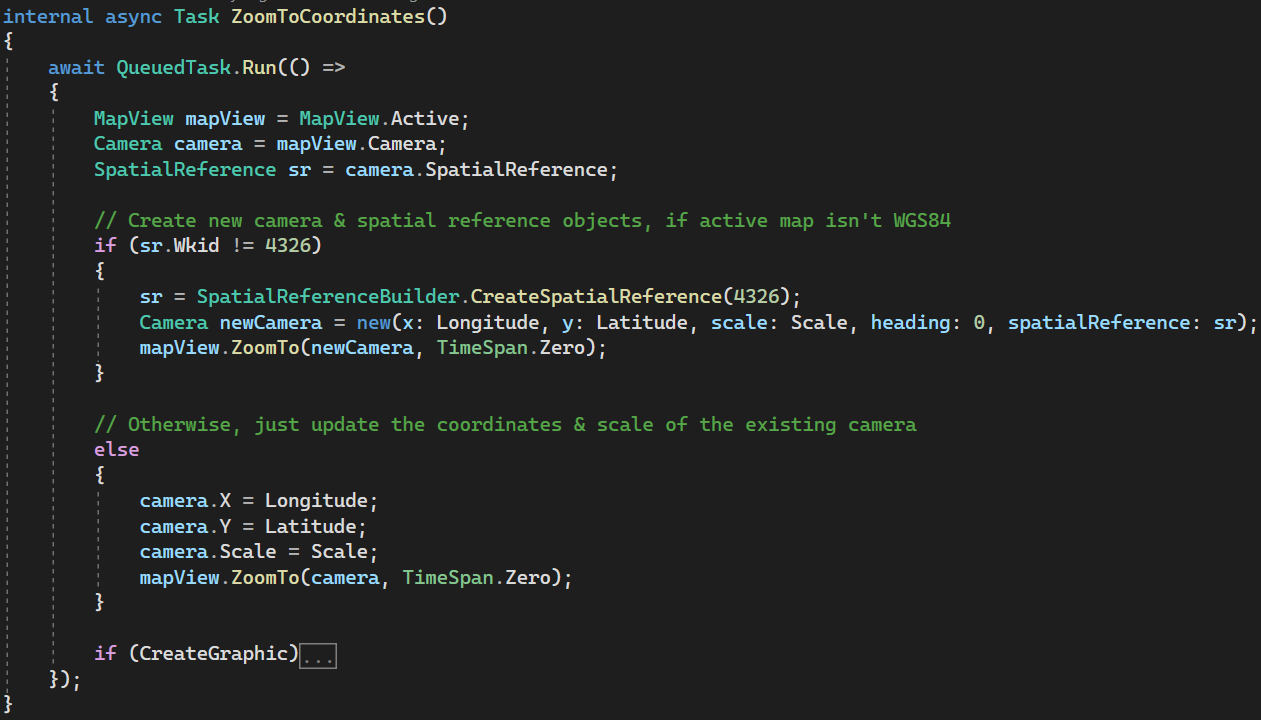
As an ArcGIS Pro Add-In Developer, you will frequently use QueuedTask.Run() which is called from the MCT (i.e., Main Cartographic Information Model Thread). Failure to do so for methods requiring it will result in a thrown CalledOnWrongThreadException at runtime.
How Do WPF Binding and MVVM Keep Add-In Code Organized?
Windows Presentation Foundation (WPF) and the Model-View-View Model (MVVM) design pattern are large and complex topics apart from the ArcGIS Pro SDK for .NET. Yet, to make robust Add-Ins while adhering to .NET best practices, we need to leverage concepts like WPF data binding and MVVM to decouple the UI (View) from the business logic (ViewModel), along with defining any necessary data classes (Model).
We use data binding to bind our ViewModel properties to the View and SetProperty() in our ViewModel, so that any changes occurring in the View automatically trigger a property change event, so our properties are updated in the ViewModel. Although we could use NotifyPropertyChange from the INotifyPropertyChange interface directly (as a non-Esri WPF app does), the Pro SDK team provides us with their own implementation, SetProperty(), resulting in fewer lines of code.
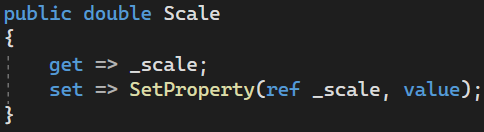
The ArcGIS Pro SDK defines SetProperty() which notifies the ViewModel (LatLongZoomViewModel.cs) when the property's value has changed in the View when one uses data binding.

The bound property as seen from the View (LatLongZoomWindow.xaml).
WPF commands provide a means for defining an action one time in the ViewModel and allowing it to be called in one or many places in the View via binding. The SDK provides us with an implementation of ICommand called RelayCommand that allows us to accomplish this.
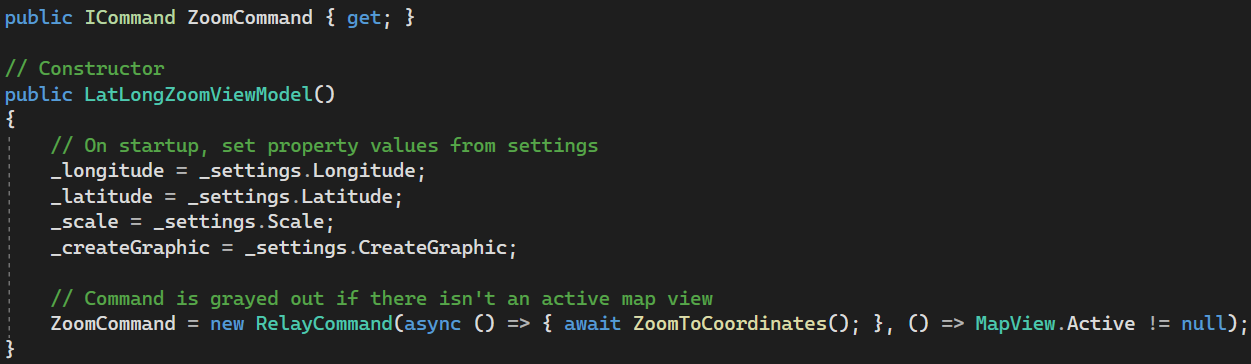
Using a RelayCommand constructor from the ViewModel (LatLongZoomViewModel.cs) that takes two parameters, an asynchronous delegate and a canExecute() condition. Since this is a map exploration Add-In, we don't want the command to be activated without an active MapView or if the user hasn't selected their scale choice.

The command referenced in the View (LatLongZoomWindow.xaml) using data binding.
Lastly, it's important that you define the DataContext so that the View knows where the bound properties and commands reside. For this Add-In, which is comprised of two Views (i.e., ArcGIS Pro Windows) and a separate ViewModel for each, the DataContext gets defined in each of the View's "code-behind" .cs files after the call to InitializeComponent().
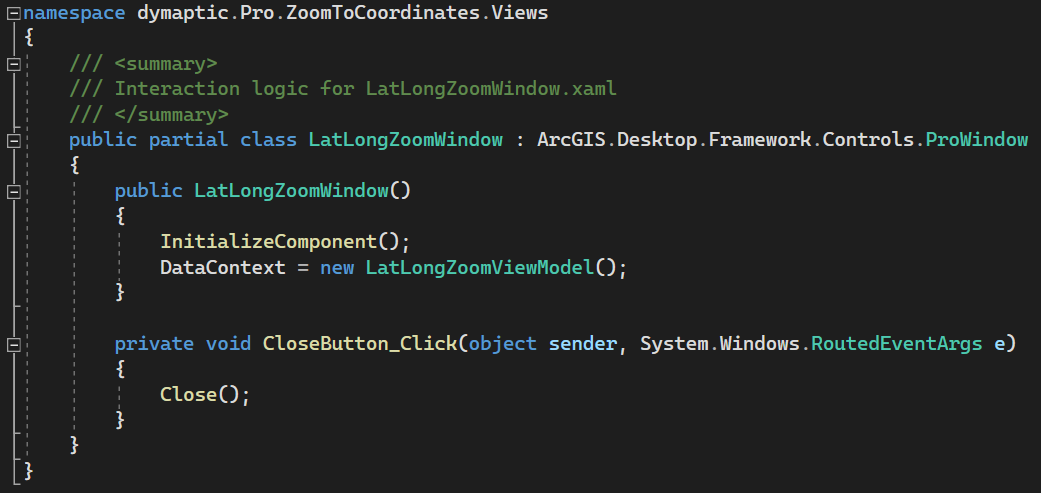
Defining the ViewModel as the DataContext, to achieve data binding between the View and ViewModel.
ArcGIS Pro Add-Ins offer a structured path to extending Pro with custom workflows, from simple ribbon buttons to full dockpane tools built on modern .NET patterns.
We hope that this post has sparked ideas about the custom functionalities that could be integrated into Pro to address your specific business requirements. to explore how we can assist you with software and GIS solutions tailored to your needs!
Have a Project in Mind?
The dymaptic team loves hearing about the different projects you are working on, brainstorming solutions with you, and sharing our technical expertise in the process.