A Simple Guide to Esri's Complex ArcGIS Enterprise Hardening Guide
In January 2024, Esri released the ArcGIS Enterprise Hardening Guide, a dense but necessary 123-page technical paper on securing ArcGIS Enterprise deployments from top to bottom. This post breaks down the most critical security settings GIS administrators should prioritize, from SSL certificate configuration to automated vulnerability scanning.
Quick Summary
- Esri's ArcGIS Enterprise Hardening Guide defines two security profiles: Basic, recommended for 95% of deployments, and Advanced, which meets NIST critical software standards but reduces some ArcGIS Enterprise functionality.
- SSL certificates are among the most common ArcGIS Enterprise misconfigurations; CA-signed or domain-signed certificates must replace the default self-signed certificates to meet the Basic security profile.
- ArcGIS Server and Portal for ArcGIS are configured via their respective Admin REST APIs; ArcGIS Data Store uses the
updatesslcertificate.batcommand-line tool instead. - Web Adaptors hide internal ports and machine names, routing traffic through HTTPS over your fully qualified domain name.
- ArcGIS Server and Portal for ArcGIS each include a built-in Python security scan script (serverScan.py and portalScan.py) checking for 15 and 17 known configuration vulnerabilities, and should be run regularly by GIS administrators.
A basic definition of hardening is making modifications to a system to increase its security and performance. This involves implementing a set of procedures, practices, and technologies to protect your infrastructure.
In this blog article, I won't explain every action the Hardening Guide outlines; instead, I will provide some tips to help flag some of the most glaring security settings. At dymaptic, our GIS administration team regularly helps clients navigate these security requirements for their ArcGIS Enterprise deployments.
What Are the Two ArcGIS Enterprise Security Profiles?
First, let's distinguish between the two security profiles outlined in the Hardening Guide:
- The Basic security profile: Esri recommends that 95% of users adjust their ArcGIS Enterprise security settings to align with the Basic security profile. When ArcGIS Enterprise is first installed, the default security settings for Server and Portal fall short of this profile. Esri advises that these default settings are suitable only for development purposes since the security configurations are lacking. Even then, I caution you against development or test environments with different settings than production. It's easy to have a deployment issue because of a setting difference between environments.
- The Advanced security profile: This profile meets the NIST (National Institute of Standards and Technology) definition of critical software. It also requires configuration changes that result in a loss of ArcGIS Enterprise functionality.
How Should SSL Certificates Be Configured in ArcGIS Enterprise?
One of the most common misconfigurations is SSL certificates. Let's start with an overview of how the ArcGIS products transfer data to each other. The core of ArcGIS Enterprise consists of three pieces of software: ArcGIS Server, Portal for ArcGIS, and ArcGIS Data Store. After installation, each of these is accessible on a different port; they also talk to each other on these ports:
- ArcGIS Server: 6443
- Portal for ArcGIS: 7443
- ArcGIS Data Store: 2443
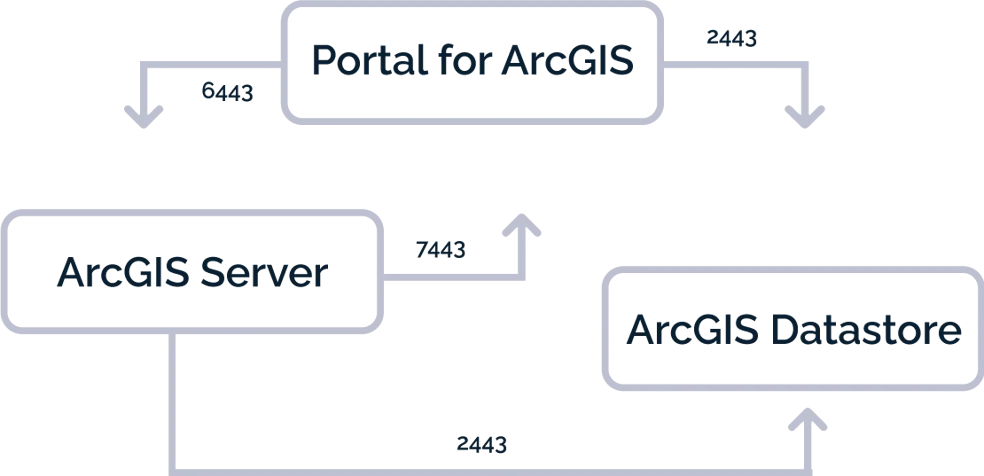
Figure 1. Communication over ports at the core of ArcGIS Enterprise.
By default, ArcGIS uses self-signed certificates, so that you can quickly get ArcGIS Enterprise up and running. However, this convenience comes at a price for your users. Their browser will notify them that the site is insecure, and they must click "Accept" or "I know the risks" to proceed. Therefore, to meet the Basic security profile, you must use proper CA (Certificate Authority) or domain-signed SSL certificates for these services.
A domain-signed SSL certificate can be appropriate if your environment is only accessed behind your firewall by devices under your control and can be instructed to trust your root domain and, consequently, the domain-signed certificates for your services. If your environment is accessible from outside your firewall, then a domain-signed SSL certificate is not an option and you should use a CA-signed certificate. Using a domain-signed certificate in this scenario would trigger the same "Accept" or "I know the risks" prompts as a self-signed SSL certificate.
How Do You Use the ArcGIS Enterprise Admin REST APIs?
ArcGIS Server can be configured using the Admin REST interface, as in Figure 2.
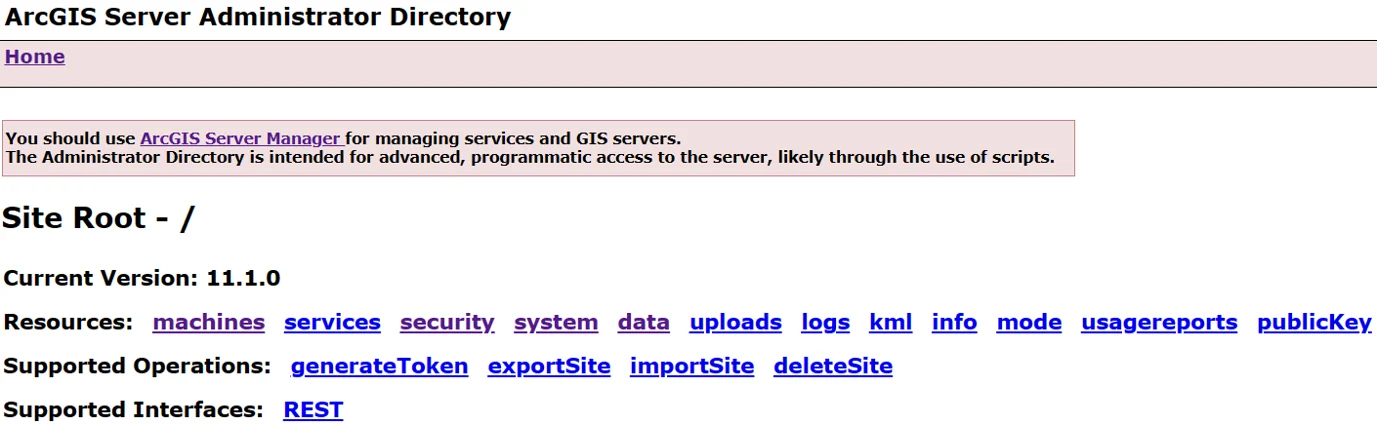
Figure 2. Configure many ArcGIS Server security settings including SSL certificates using the Admin REST API.
The Portal for ArcGIS can similarly be configured using its own Admin REST interface, shown in Figure 3.
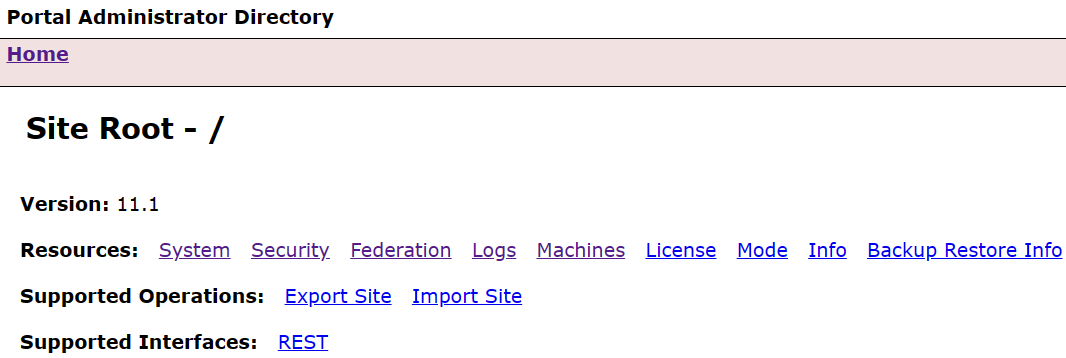
Figure 3. Configure many Portal for ArcGIS security settings including SSL certificates in the Admin REST API.
ArcGIS Data Store lacks an Admin REST interface and so must be configured by running the updatesslcertificate.bat command line tool located here: <ArcGIS Data Store installation directory>\datastore\tools (Figure 4).

Figure 4. ArcGIS Data Store does not have an Admin REST API and instead has a Windows batch tool that can be run from the command line in admin mode to configure it to use your CA-signed SSL certificate rather than the default self-signed one.
How Do Web Adaptors Improve ArcGIS Enterprise Security?
ArcGIS Enterprise also provides a basic load balancer called Web Adaptor. You typically configure a separate Web Adaptor for both Portal and Server. The Web Adaptors, which reside on your web server, should be configured to use HTTPS. They hide the machine name and the port that Server and Portal communicate over (:6443 and :7443 respectively), such that web traffic to your Portal and services occurs over the fully qualified domain name specified by your SSL certificate and the name of your Web Adaptor. For instance, https://webadaptorhost.domain.com/webadaptorname/rest/services, rather than https://gisserver.domain.com:6443/arcgis/rest/services (note that the Hardening Guide recommends that both the ArcGIS Server REST services and Portal services directories be disabled unless you need them.)
Once configured, the traffic diagram from above gets a bit more complex. You can see that the end-user or client only accesses the services via the Web Adaptors, but the services themselves continue to communicate on the other ports (7443, 6443, and 2443).

Figure 5. Completely secure communication over ports in ArcGIS Enterprise.
How Do You Scan ArcGIS Enterprise for Security Vulnerabilities?
ArcGIS Server and Portal for ArcGIS each come installed with two Python security scripts that search for common security vulnerabilities with your configuration. As of ArcGIS Enterprise 11.2, serverScan.py located in <ArcGIS Server installation location>/tools/admin checks for 15 vulnerabilities and portalScan.py located in <Portal for ArcGIS installation location>\tools\security checks for 17 vulnerabilities (Figures 6 and 7). Many vulnerabilities will be addressed by modifying or adding properties in the Server and Portal Admin REST APIs. It behooves GIS Administrators to regularly run these to ensure configuration settings are correctly set, as well as quickly pinpoint mistakenly publicly shared content. For instance, nobody wants to explain that a dataset's records were deleted, or that embarrassing updates were made to a text field by a stranger, facilitated by a feature service with edit capabilities open to anonymous access.

Figure 6. ArcGIS Server comes with serverScan.py. If you have a federated ArcGIS Server, provide your Portal admin credentials. If it is a stand-alone instance of ArcGIS Server, provide your server admin credentials.

Figure 7. Portal for ArcGIS comes with portalScan.py.
The dymaptic team has a wealth of ArcGIS Enterprise experience and three Esri Certified ArcGIS Enterprise Admins. Our team can offer guidance on ArcGIS Enterprise security best practices, such as setting up ArcGIS Enterprise backups using webgisdr.bat or installing and/or upgrading ArcGIS Enterprise to the latest version, which also plays an integral part in keeping your ArcGIS Enterprise deployment safe from the latest cyberthreats.
Need Help Hardening Your ArcGIS Enterprise Deployment?
The dymaptic team includes Esri Certified ArcGIS Enterprise Admins who can help with security hardening, backups, upgrades, and ongoing administration.