Three Ways to Configure Email Sending from ArcGIS
Email used to be easy. So easy that you could configure your computer to send email from any domain, essentially allowing you to spoof any domain or person you wanted. Email, like life, is now more complicated. If you are trying to configure ArcGIS Monitor or ArcGIS Enterprise to send emails, and SMTP isn't working for you (or you don't even have SMTP credentials), and you are using Microsoft 365 (a.k.a. Office 365), you have come to the right place.
Quick Summary
- ArcGIS Monitor and ArcGIS Enterprise can be configured to send email using three methods when standard SMTP is unavailable: a relay server, a third-party email service, or Microsoft 365 Direct Send.
- Standard SMTP authentication is disabled by default in Microsoft 365 because it does not support multifactor authentication or rotating tokens.
- All three methods require updating your SPF DNS record to authorize the sending server, with varying levels of complexity.
How Can ArcGIS Send Email with Microsoft 365?
We will cover three ways you can continue sending emails while having Microsoft 365 secured. When the default security rules are on, sending via SMTP using your user account is disabled. SMTP does not support multifactor authentication or rotating tokens and is less secure than modern systems like OAuth.
Here are the three common methods that we at dymaptic recommend:
Which Email Sending Method Is Right for You?
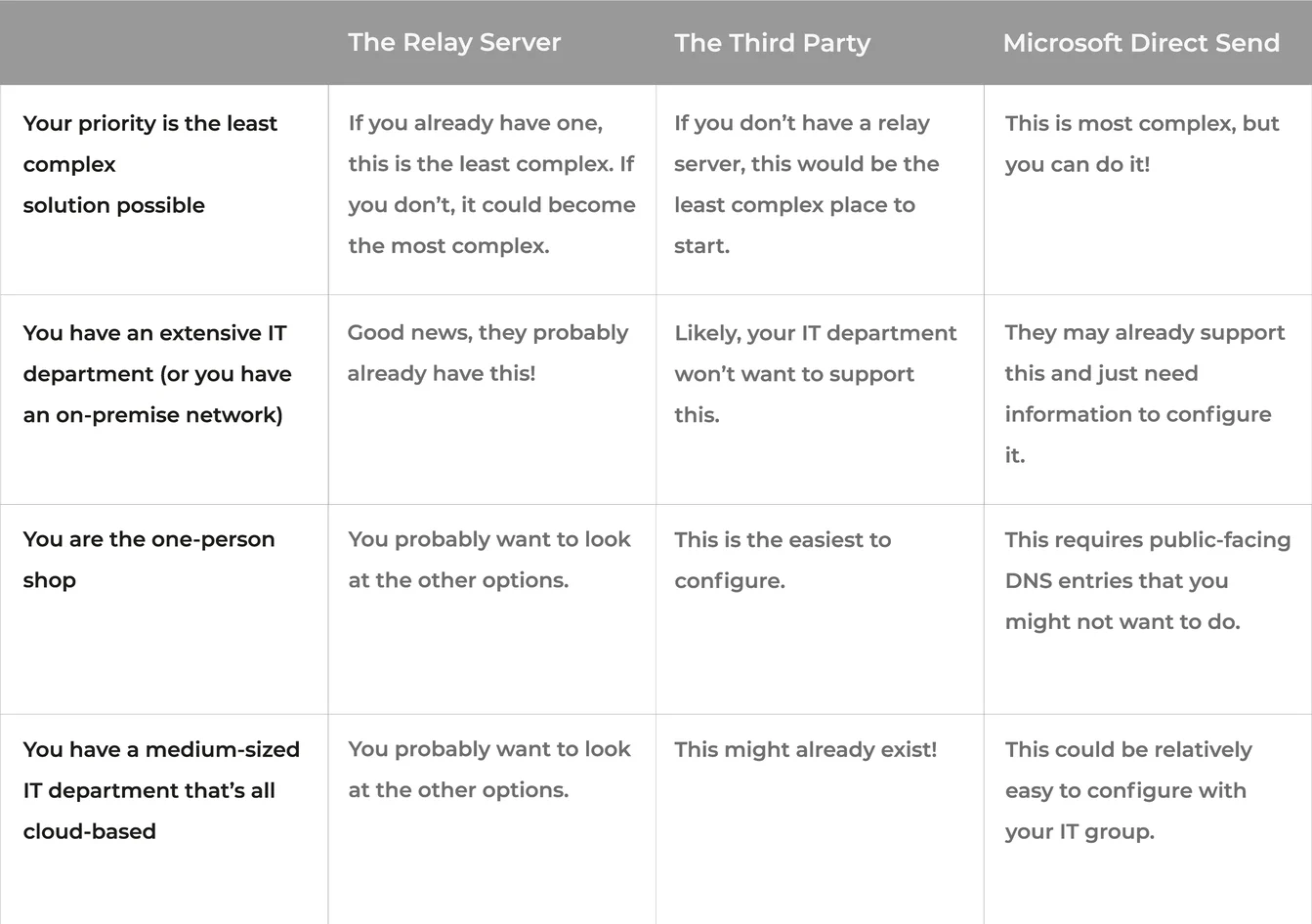
All of these require some configuration, so if you don't already have any of these, you will need to be able to update your SPF DNS Record. Although SPF (Sender Policy Framework) is yet another acronym, it is a crucial component of reducing spam on the internet by ensuring that email comes from only verified servers. Email sending is becoming increasingly strict, with Google and Yahoo requiring DMARC (another acronym that helps verify email senders). That said, one can no longer just "send an email." Instead, you must send it from a verified server, which means updating DNS records.
A word of warning: Some configurations we discuss here require editing DNS records. We will not dive into what these do, and your specific implementation might require a different configuration than what we are showing here.
Method 1: The Relay Server
This first method is both the easiest and the hardest of the three. If you work within a larger IT organization that has its own network (likely an on-premise one), you probably already have a relay server; you just need to ask IT for the information. A relay server is precisely what it sounds like: a trusted server on a trusted network that can "relay" the email you wish to send to the primary server to get your message out the door.
You probably don't have a relay server if you are a small organization. Setting them up is not complicated, but you would have another server to maintain. Probably one of the other two options would make more sense for you.
Method 2: The Third Party
This is the easiest option if you don't have a relay server! This method involves paying a third-party email-sending service to send emails on your behalf. There are a couple that I have used and would recommend: SendGrid (Twilio), Mailgun, and Brevo (formerly SendInBlue). Any of these services will walk you through the configuration of sending email, but you will need access to your DNS entries to update your SPF and related signing records.
Once configured, you can generate a very long SMTP password (keep this password a secret, like an API Key) that you can enter into your ArcGIS Monitor email configuration, and you are up and running, easy as that! This type of service also behaves much like a relay server, so you can connect many things to send email this way: ArcGIS Monitor, ArcGIS Enterprise, and even your custom Python scripts!
If updating your DNS records is scary, I'm with you! It is terrifying knowing that a single character out of place could mean that we can't send or receive emails for days! There are services that help automate this and make keeping up with email security configurations more straightforward, like EasyDMARC.
A note on the "From" of an email message: It should match the domain you are sending from. Don't ever try to send an email from a domain that is not the sending domain. For example, I should not try to send an email "from" esri.com when my domain is dymaptic.com. All that will do is make my domain look more like a spam domain, and likely, the email will never be delivered anyway!
Method 3: Microsoft 365 Direct Send
This one seems a bit crazy to me. When Kevin and I were testing all of these out at dymaptic, I didn't believe it would work! Fortunately, Kevin is very persistent, and we got this going. If you want, you can read Microsoft's documentation on this (see Option 2). It's pretty dense and not very helpful, though.
This method works by pushing emails directly to your mail server, but you need to tell your mail server which server(s) is(are) allowed to do so. Let's say you are configuring ArcGIS Monitor to send emails; that server will need a public IP address or a DNS entry that will resolve to one.
Be careful here: You could use your public-facing IP address for your internal network, the one provided by your Internet Service Provider, but that would allow ANY AND ALL computers on your network to send mail this way. Be sure that is what you want and that you are not violating your IT security rules. I wouldn't do it that way!
Once you have that IP address, you'll have to update your SPF DNS record. For our testing, that looks like this:
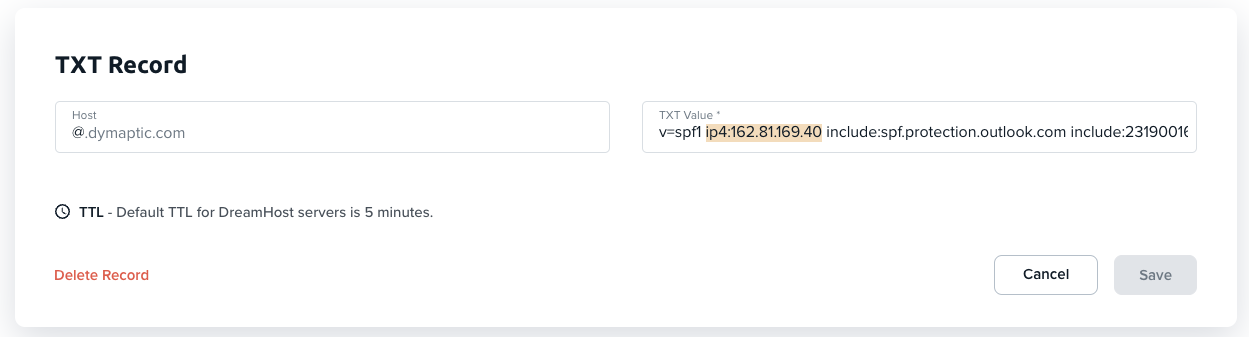
We've added the IP address of the server that we want to allow to send emails to our SPF record. You can see that we've left the other values in place.
Now, you'll need your mail server, which is the server in your MX record. If you don't know what's in your MX DNS record, you can use a tool like MX Toolbox to get it for you.
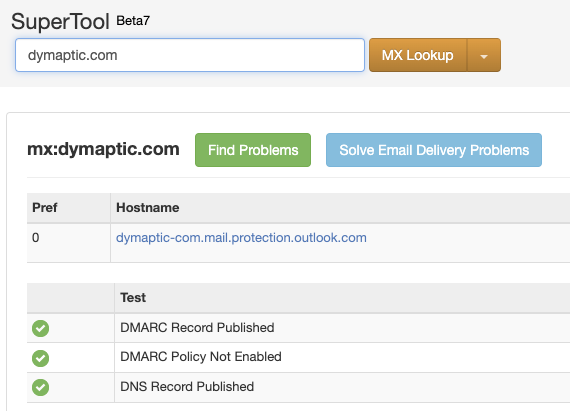
With the MX server name and the SPF record updated, we can now configure ArcGIS Monitor or Enterprise (or any other software on that server that can send via SMTP) to send emails. The configuration will look like this:
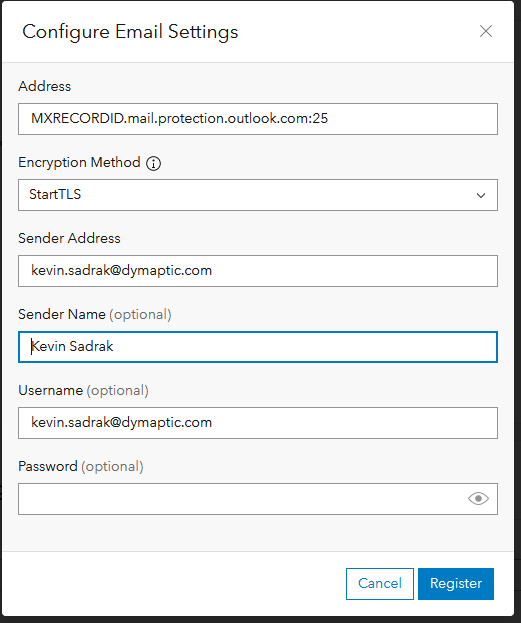
You don't need your password here; we have authorized this server to send mail by adding it to the SPF record! That's one reason you should keep control over what software is on this server and who has access to it.
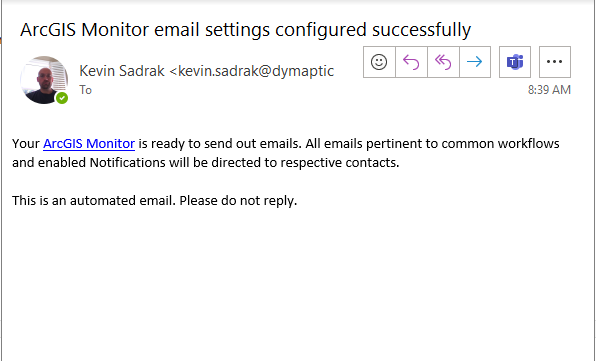
Once you click register, you can send a test email.
Wrapping Up
None of these methods are that complicated, but they do all require some level of configuration you might not be used to. Please if you have questions or want another pair of eyes.
This guide was put together by Christopher Moravec & Kevin Sadrak of dymaptic.
Frequently Asked Questions
Why doesn't standard SMTP work with Microsoft 365 anymore?
Microsoft 365 disabled standard SMTP authentication by default because SMTP does not support multifactor authentication (MFA) or rotating tokens. ArcGIS Monitor and ArcGIS Enterprise users can send email by switching to a relay server, a third-party email service, or Microsoft 365 Direct Send instead.
What is an SPF DNS record and why does ArcGIS email configuration require one?
An SPF (Sender Policy Framework) record is a DNS TXT record that lists which servers are authorized to send email on behalf of a domain. All three methods in this post require updating the SPF record with the sending server's IP address or hostname. Without it, ArcGIS emails are likely to be rejected or flagged as spam.
Which method is easiest for a small organization without a relay server?
Method 2 (third-party email service) is generally the easiest option. Services such as SendGrid, Mailgun, and Brevo provide SMTP credentials that plug directly into ArcGIS Monitor's email configuration, handle SPF and DKIM signing automatically, and support multiple sending applications including ArcGIS Enterprise and custom Python scripts.
Have a Project in Mind?
The dymaptic team loves hearing about the different projects you are working on, brainstorming solutions with you, and sharing our technical expertise in the process.